How to Make a Pixel Minecraft Steve from Any Photo (Instantly)
Turn any selfie into a chunky Minecraft Steve-style voxel avatar in under a minute using Image2Pixel’s Voxel preset, grid size, contrast, and saturation controls.
If you have ever wanted your selfie to look like the iconic, blocky Minecraft Steve, you can do it in under a minute. Image2Pixel has a dedicated Minecraft/Voxel Style preset that instantly snaps any photo into chunky, game-authentic pixels—no 3D modeling or complex software required.
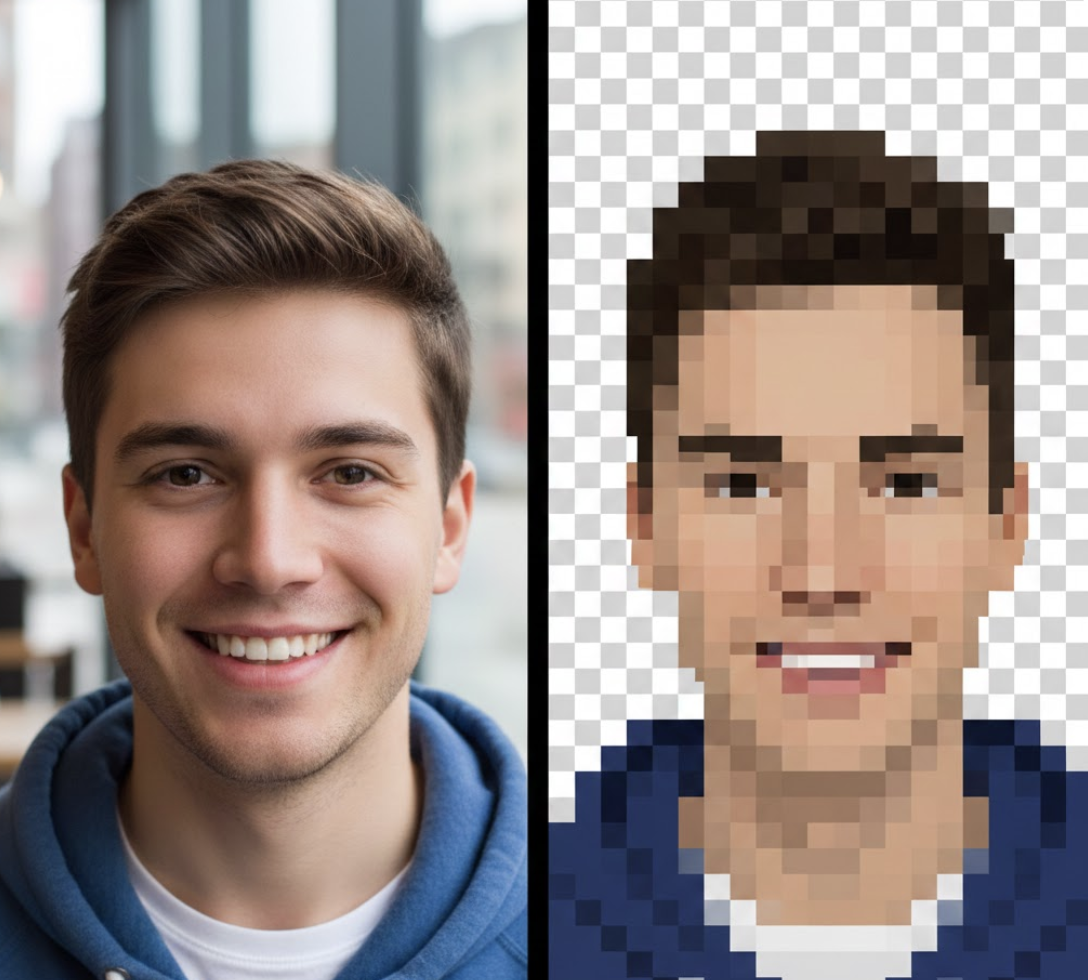
How Does Our Pixelator Achieve the Classic Minecraft Look?
The Minecraft/Voxel Style preset is tuned for the game’s signature look:
- Blockiness: Uses a medium-to-large pixel grid to create recognizable, chunky blocks.
- Color simplicity: Prioritizes earthy greens, browns, and blues that match the Overworld palette.
- Instant style: One click applies voxel-style color quantization and grid sizing automatically.
Step 1: Upload and Pick the Minecraft/Voxel Preset
Open Image2Pixel, drop in your JPG/PNG/GIF, and click the Minecraft/Voxel Style preset. In seconds, your portrait becomes a Pixel Minecraft Steve-style render.
Pro tip: choose the best source photo
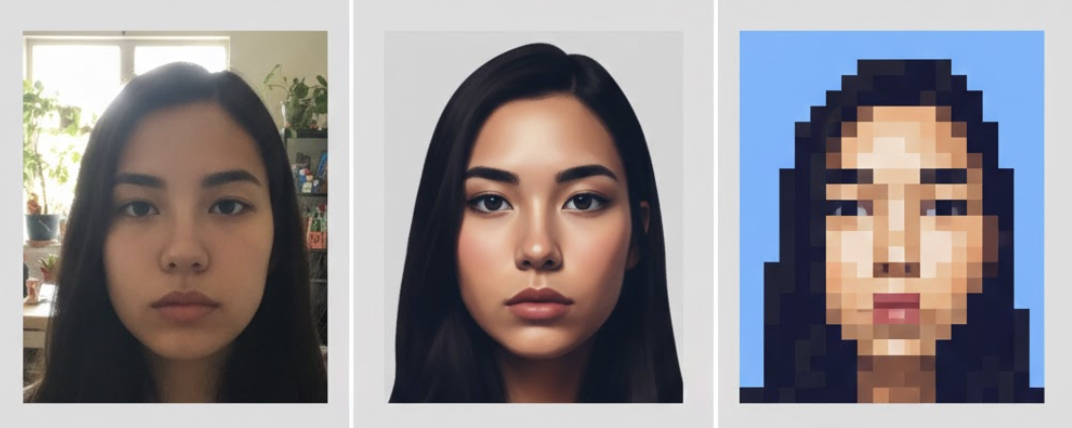
- High contrast: Clear separation between you and the background keeps edges crisp.
- Centered framing: Put your face in the middle of the shot for the cleanest result.
- Simple background: Plain walls or open skies prevent muddy blocks.
Step 2: Dial In the Grid Size
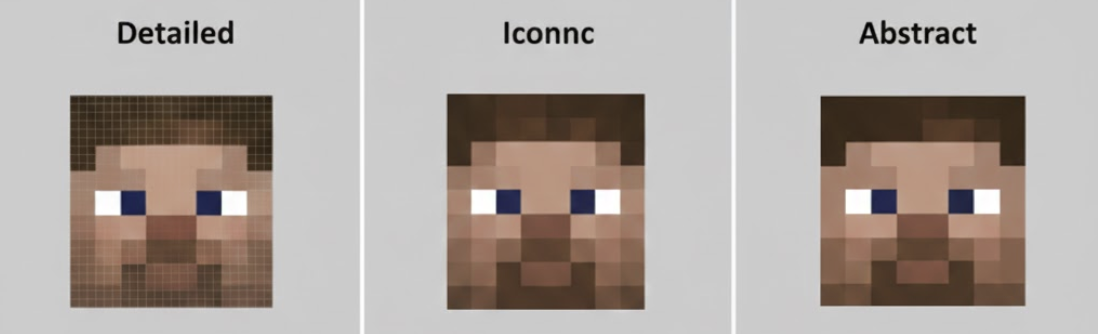
Use the Grid Size slider to choose how chunky or detailed your Steve-style portrait feels.
| Grid Size | Effect | Ideal Use Case |
|---|---|---|
| 20-30px | High detail retained, still blocky. | Detailed portraits—eyes and hair stay recognizable. |
| 40-60px | Classic Minecraft balance. | Profile pictures—chunky but clear. |
| 80px+ | Extreme abstraction. | Texture sheets or background assets. |
- Small grid (20-30px): High detail while staying blocky—great for eyes and hair definition.
- Medium grid (40-60px): Classic Minecraft balance for profile pictures and avatars.
- Large grid (80px+): Ultra-chunky abstraction for texture sheets or background assets.
Step 3: Boost Contrast and Saturation
Raise contrast to around 110-120% to sharpen edges between color blocks. Nudge saturation up so greens, blues, and browns pop like the in-game palette—especially if your photo has sky or water.
Quick quality check
- Edges look sharp, not muddy.
- Colors are simple and blocky with clear separation.
- Grid size keeps your face recognizable while staying chunky.
Step 4: Download and Share
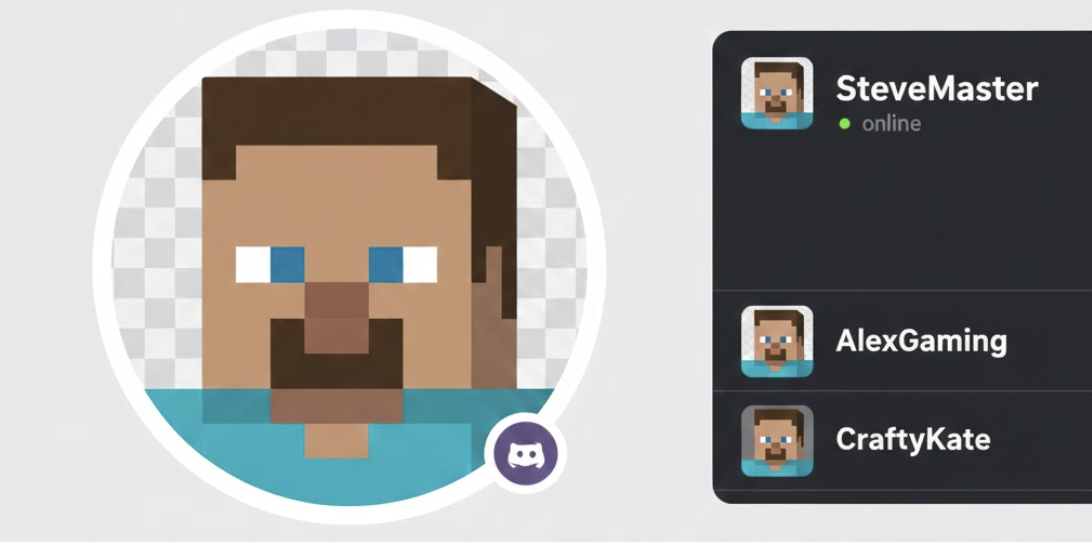
Hit download to grab a high-resolution, watermark-free PNG (transparency preserved). Upload it as your Minecraft skin, Discord avatar, or stream graphic immediately.
FAQ: Fast Answers
Can I convert an animated GIF?
Yes. Upload short GIFs to generate a blocky, animated Minecraft-style sprite instantly.
Is this voxel art or pixel art?
Voxel art is 3D pixel art. The preset applies voxel-inspired colors and chunky grids to 2D photos, so you get a Steve-style look without modeling a 3D head.
Why use this instead of voxel software?
Traditional voxel tools require placing blocks by hand. Image2Pixel handles the palette and grid in one click, letting you export a usable avatar in seconds.
Ready to Craft Your Blocky Twin?
Open Image2Pixel, pick Minecraft/Voxel Style, and adjust the grid, contrast, and saturation sliders. In under a minute, you will have a Pixel Minecraft Steve portrait ready to download and share—no registration needed.